

n8n-nodes-resend) provides full coverage of the Resend API. From within n8n, you can send emails, manage contacts, handle domains, and trigger workflows from email events.
How to use Resend’s n8n node
1
Install the Resend node
- Open the nodes panel by selecting + or pressing Tab
- Search for Resend
- Select Install to install the node for your instance
- The node is now available in all your workflows
2
Setup Resend
- Create an API Key: copy this key to your clipboard
- Verify your own domain: to send to email addresses other than your own
3
Add your Resend API credential
- In n8n, go to Credentials > Add credential.
- Search for Resend API and paste your API key.
4
Send your first email
- Click the + (Add node) connector on the canvas.
- Search for Resend in the nodes panel.
- n8n displays a list of available actions — select Send an Email.
- The Resend node is added to your workflow with the Send operation pre-selected.
- Fill in the From, To, Subject, and Email Body fields.
- Execute the node.
By default, you can only send emails to your own email address using the
onboarding@resend.dev sender domain. To send to other recipients, add a
custom domain to your Resend account.Human in the Loop (Send and Wait)
The Send and Wait for Response operation enables human-in-the-loop workflows. Send an email and pause the workflow until the recipient responds, via approval buttons or a free-text form.- Select the Email resource and the Send and Wait for Response operation.
- Choose a Response Type: Approval (buttons) or Free Text (form).
- Configure the email content and any wait-time limits.
- The workflow pauses until the recipient clicks a button or submits the form.
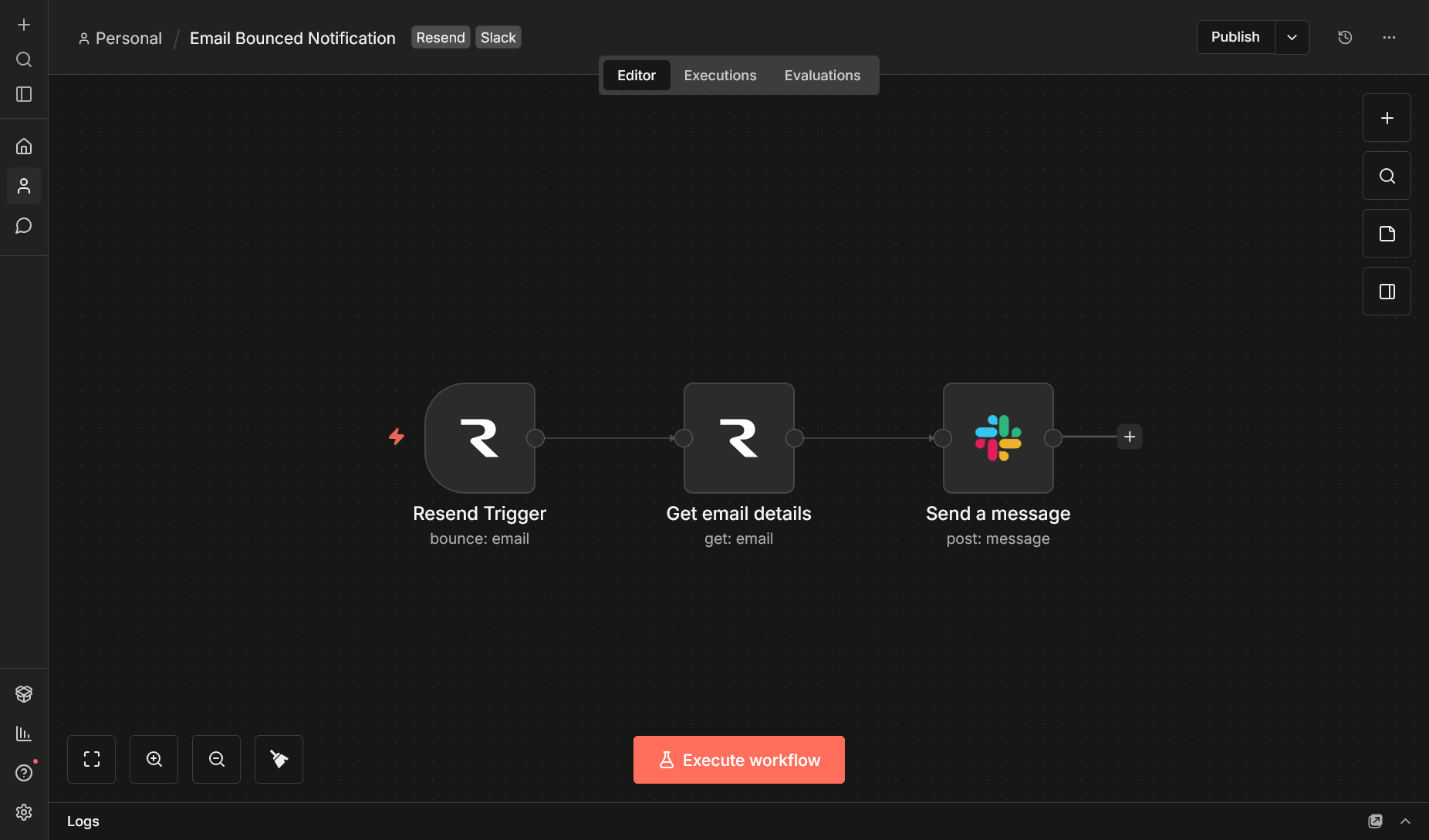
Receive webhooks with the Resend Trigger
The Resend Trigger node lets you start workflows automatically when email events occur in Resend (e.g., an email is delivered, opened, or bounced). Webhook signatures are verified automatically using Svix.Set up the Trigger node
- Add a Resend Trigger node to your workflow.
- Create a Resend Webhook Signing Secret credential:
- Create a webhook endpoint in the Resend Dashboard.
- Copy the signing secret (starts with
whsec_). - In n8n, go to Credentials > Add credential, search for Resend Webhook Signing Secret, and paste the secret.
Give each webhook credential a unique name (e.g., “Resend Webhook — Bounces”
or “Resend Webhook — Delivery Events”). This makes it much easier to identify
the right credential when you have multiple triggers connected to different
webhooks.
- Select the events you want to listen for.
- Copy the webhook URL from the Trigger node and paste it into your Resend Dashboard webhook configuration.
Supported trigger events
Example workflow: Send a welcome email when a contact is created
Here’s a simple workflow you can build with the Resend nodes:- Resend Trigger: listens for
contact.createdevents. - Resend (Email > Send): sends a welcome email to the new contact using data from the trigger.
The Resend node is also available as an AI
tool
in n8n, so you can use it inside AI agent workflows.