

Prerequisites
Before you start, make sure you have:- A Devin account with access to the Settings menu
- A Resend API key
- A verified domain
Guide
1
Open Devin Settings
In Devin, open the Settings menu from your account dropdown.
2
Go to Connections > MCP Servers
In the Settings sidebar, click Connections, then select the MCP Servers tab. Click Add a custom MCP.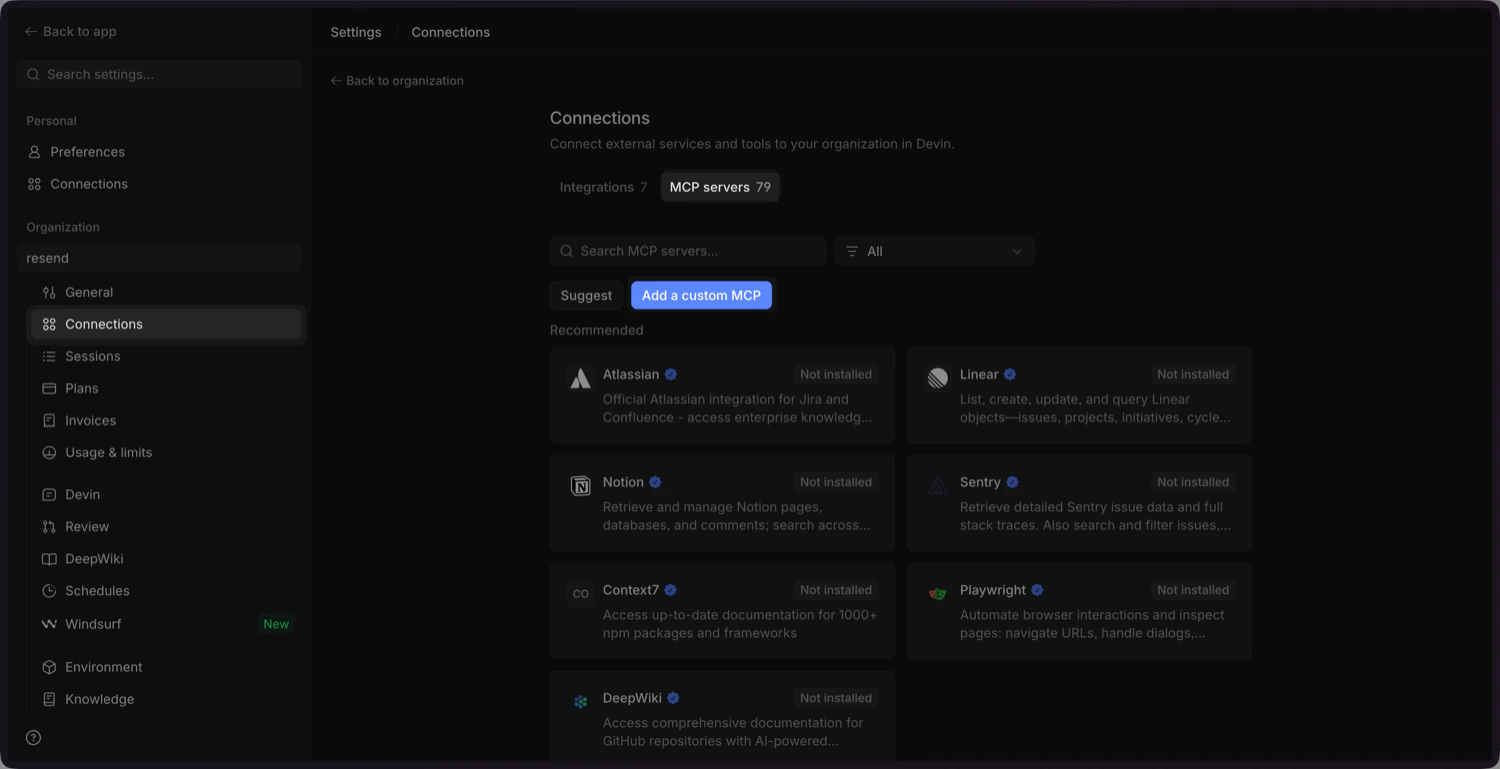
3
Add the Resend MCP configuration
Click Import JSON and paste the following configuration into the modal.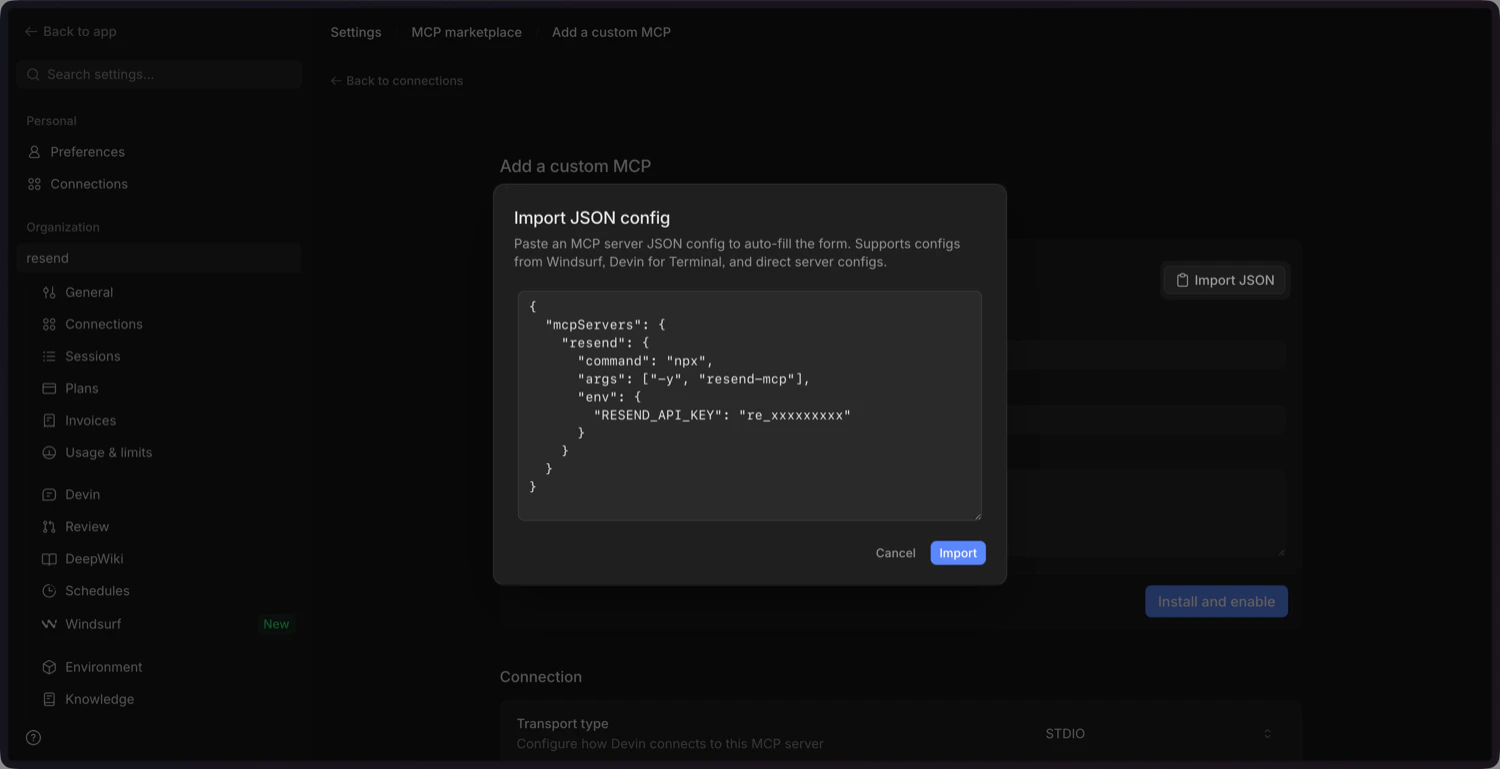
4
Update the Environment Variables
Scroll down and update the environment variables:
-
RESEND_API_KEY: delete this and add it as a secret (see the next step). -
SENDER_EMAIL_ADDRESS: update this with your sender email address you’ve verified in the Resend Dashboard.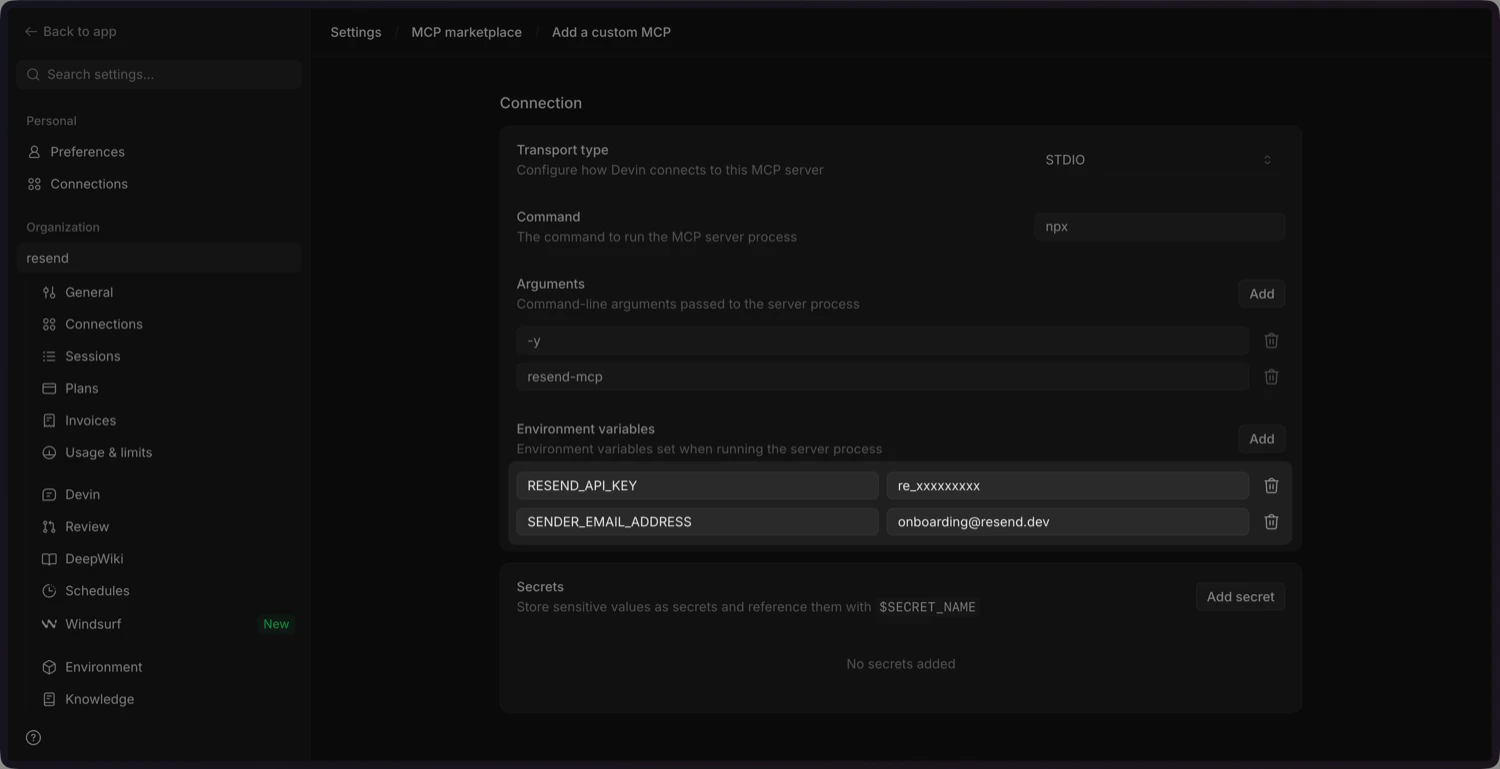
5
Add the Resend API key as a secret
Add the 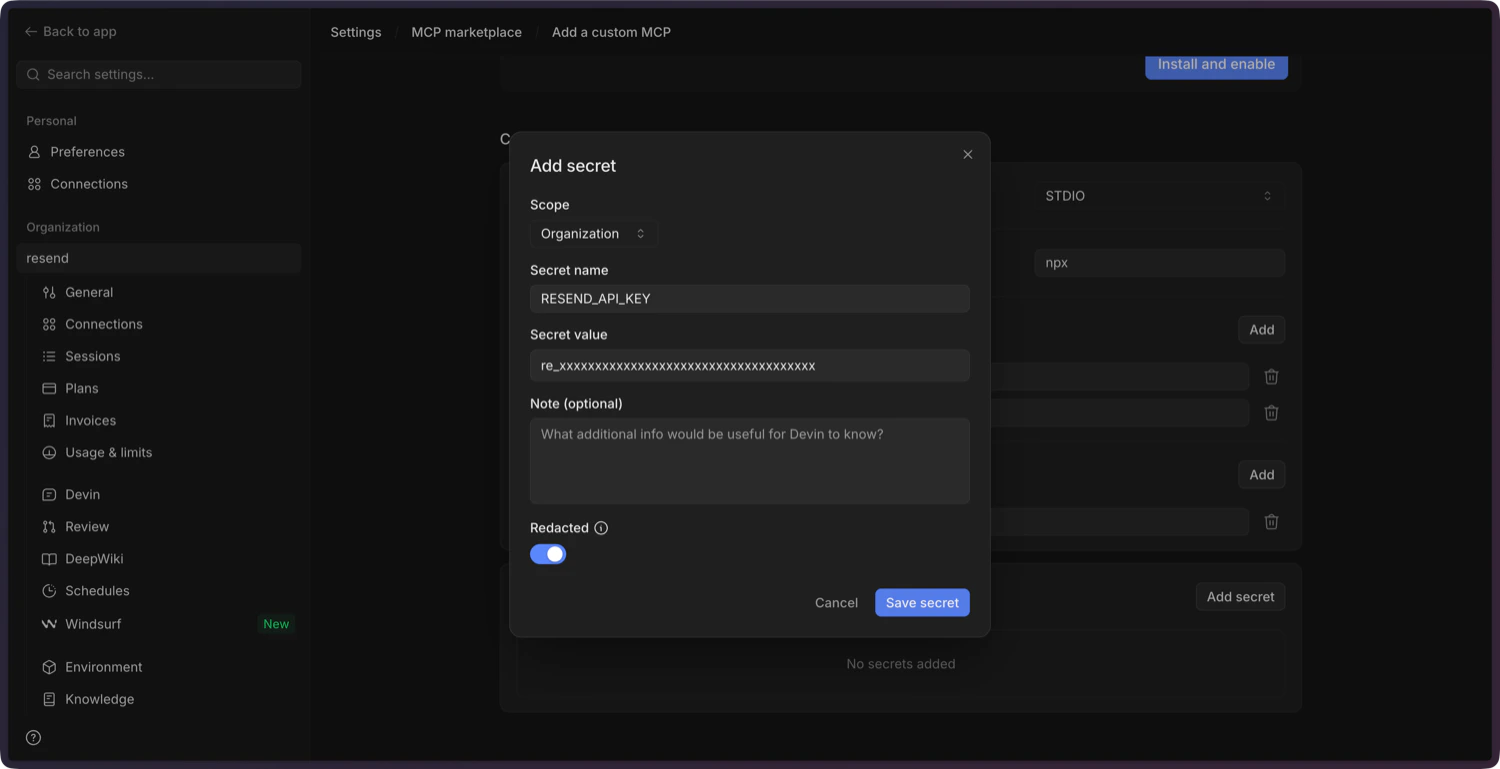
RESEND_API_KEY as a secret. Click Save secret to confirm.You can create a new API key in the Resend
Dashboard.
6
Confirm and enable the MCP server
Add a description, click Install and Enable, and confirm in the dialog. Devin will install the server and mark it as connected.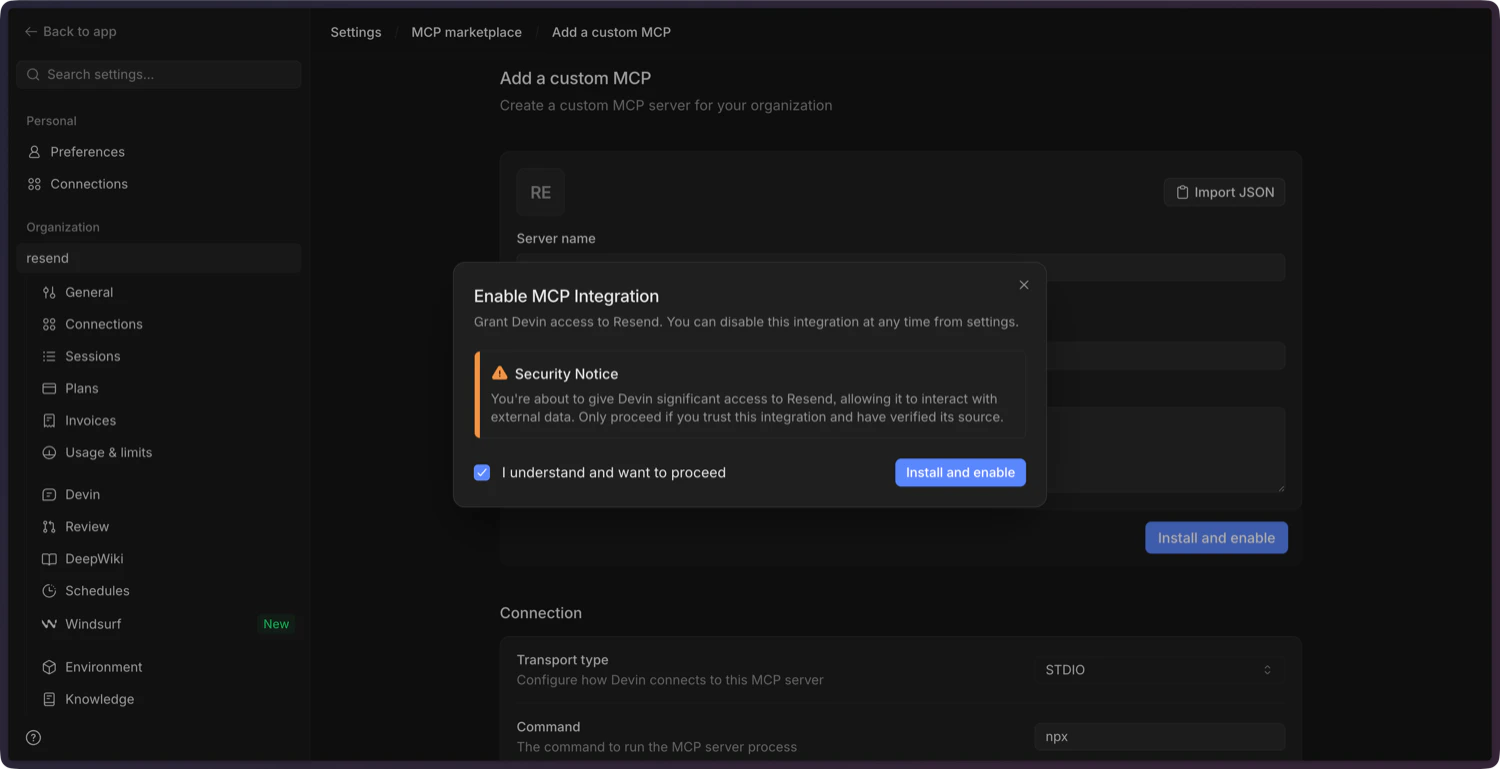
7
Test the connection
Ask Devin to send a test email. For example:Devin will call the Resend MCP server and confirm the send.